
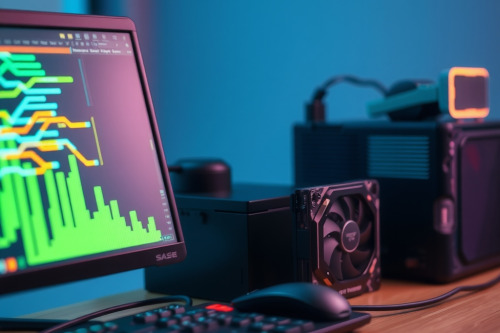
Your machine stutters under routine office workflows, stalling productivity during critical tasks. In my 12 years diagnosing workplace IT systems, technicians routinely waste hours troubleshooting machines that have passed their operational lifespan. Learning when to upgrade your old hardware prevents data corruption, catastrophic crashes, and unnecessary component expenditure. Follow these practical diagnostic baselines before spending capital on fresh components.
Primary indicators that tell you to upgrade your old hardware
Sluggish response times signal physical limitations within silicon or mechanical drives. When a clean installation of your operating system fails to restore responsiveness, hardware degradation has taken place. I regularly inspect rigs where boot cycles exceed 3 minutes, indicating critical drive degradation.
Modern applications require extensive memory bandwidth and modern instruction sets. If your daily workflow routinely commits 90% or more of available system memory, background swapping to disk throttles responsiveness. Older central processing units lack hardware-level support for modern codecs like AV1, offloading media decoding entirely to struggling compute cores.
Thermal throttling and persistent noise
Cooling systems deteriorate over continuous multi-year deployments. Dust accumulation acts as an insulator, but dried thermal paste completely destroys heat transfer between the die and heat pipes. Fans spin at 100% capacity constantly to compensate for poor dissipation. Continuous temperatures above 85°C degrade solder joints and cause irreversible silicon degradation.
Hardware failure warning signs versus software bloat
Software bloat masquerades as physical failure, tricking operators into premature purchases. Corrupted registry entries, runaway background telemetry, and conflicting drivers routinely mimic genuine component death. You must decouple operating system decay from mechanical decline before opening your chassis.
Listen for mechanical noise inside your chassis. Clicking or repetitive grinding from traditional magnetic disks represents an imminent mechanical crash, requiring immediate data backups. Visual artifacts, such as pink checkerboard patterns on your display, show failing video memory or thermal separation on your graphics board.
Unexpected blue screen crashes provide critical hex codes. Errors such as WHEA_UNCORRECTABLE_ERROR point directly to failing silicon or power delivery stages. When these errors recur after applying standard system slowdown fixes, physical replacement becomes non-negotiable.
Assessing computer performance bottlenecks across subsystems
Components don't age at an identical pace across an architecture. A high-end processor from 6 years ago might still handle compute tasks, but mechanical storage holds the overall platform hostage. You must isolate specific computer performance bottlenecks using targeted load monitoring tools.
Open your system monitor during an intensive production workload. Observe which metric sustains a 100% saturation state for over 30 seconds continuously. If memory usage hovers at 95% while processor load sits at 22%, buying a whole new motherboard and processor is completely foolish.
Storage transfer speed constraints
Traditional spinning hard drives deliver sequential read speeds under 140MB/s, with random access times dragging near 15ms. In contrast, even baseline SATA solid-state drives manage 500MB/s, while NVMe drives exceed 3500MB/s. Swapping mechanical boot drives produces instant responsiveness gains for minimal cost.
Memory density and channel bandwidth
Single-channel memory configurations severely choke internal memory pipelines. Running 1 8GB stick limits throughput across the memory controller compared to 2 4GB sticks in dual-channel mode. Upgrading to 16GB or 32GB running at dual-channel eliminates stuttering during massive spreadsheet operations or heavy browser multitasking.
Calculating costs before you upgrade your old hardware
Financial prudence dictates whether an upgrade path beats complete system replacement. Replacing multiple interconnected components rapidly approaches the retail price of a balanced, pre-built workstation. You must run the raw numbers before authorizing purchase orders.
Evaluate the typical pc hardware upgrade cycle against your platform generation. If an upgrade requires purchasing a new CPU, a new motherboard socket, and DDR5 memory modules, your incremental upgrade has morphed into a platform rebuild. Keep individual component upgrade budgets below 40% of a comparable modern system replacement.
Strategic phased deployment for aging workstation components
Upgrades yield the highest return on investment when deployed in a deliberate sequence. Never replace components randomly without verifying subsystem compatibility. Power supply wattage, PCIe generation lanes, and physical chassis clearance dictate what your platform can physically house.
Start with the storage drive and operating system migration. Moving an existing system image to a fast solid-state drive delivers the single most dramatic speed boost for older systems. If performance remains unacceptable, increase system RAM to maximize multitasking capacity.
Leave processor upgrades for last. Aging workstation components often face strict BIOS compatibility limits that prevent drop-in CPU upgrades on older chipsets. If storage and memory improvements don't resolve workflow latency, retire the platform entirely.
Sensible modernization steps for your workstation
Hardware audits eliminate guesswork. Track component utilization across 5 consecutive working days to identify genuine structural limits. Knowing precisely when to upgrade your old hardware keeps your daily workflow smooth while preventing wasteful infrastructure spending. Pull your performance logs, pinpoint your worst bottleneck, and replace the failing component today.